

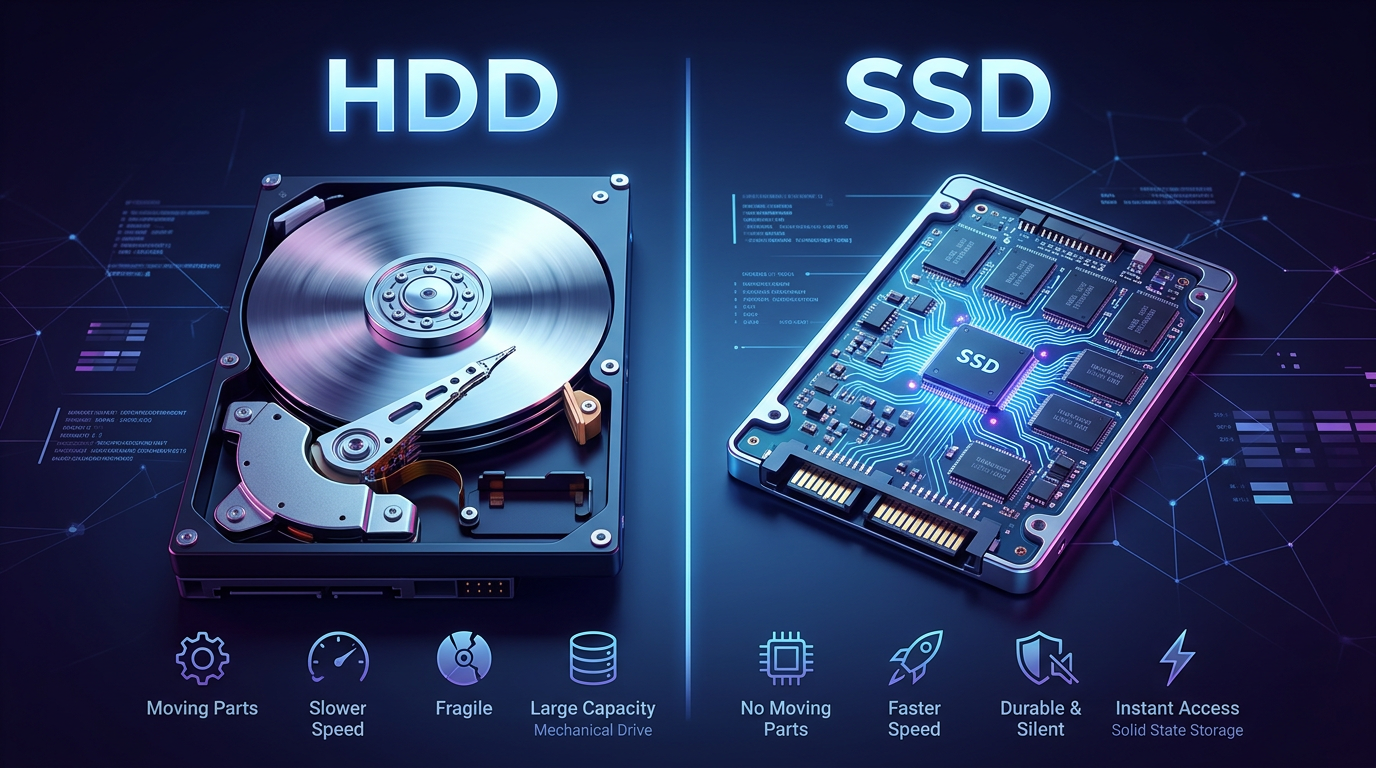
When you use a computer, whether it’s a laptop, desktop, or even a gaming console, you’re constantly saving and accessing data. But where does all that data actually live? That’s where a hard drive comes in. Understanding how storage works, and the difference between HDDs and SSDs, is one of the most important basics for anyone starting in IT.
In this post, we’ll break things down in simple terms, compare the two main types of storage drives, and explain why your choice matters more than you might think.
A Simple Explanation of a Hard Drive
A hard drive is the part of a computer that stores all your data, your operating system, programs, documents, photos, videos, and more. Think of it like a digital filing cabinet. When you save a file, it goes into this cabinet. When you open a file, your computer retrieves it from there.
There are two main types of hard drives used today:
- HDD (Hard Disk Drive)
- SSD (Solid State Drive)
Both do the same job, storing data, but they work in very different ways.
What Is an HDD (Hard Disk Drive)?
An HDD is the older and more traditional type of storage. It uses spinning disks (called platters) and a moving arm to read and write data. It’s very similar to how a record player works, but much faster and more precise.
Key characteristics of HDDs:
- Mechanical parts (moving components)
- Data stored magnetically on spinning disks
- Typically cheaper per gigabyte
- Slower compared to SSDs
Because HDDs rely on physical movement, they take more time to access data. The read/write arm has to move to the correct position on the disk before retrieving information.
What Is an SSD (Solid State Drive)?
An SSD is a newer type of storage that uses flash memory, similar to what’s used in USB drives and smartphones. Unlike HDDs, SSDs have no moving parts.
Key characteristics of SSDs:
- No moving parts (fully electronic)
- Much faster data access
- More durable and shock-resistant
- Typically more expensive per gigabyte (though prices have dropped)
Since SSDs don’t need to physically move anything to find data, they can access files almost instantly.
HDD vs SSD: What’s the Difference?
At a high level, the difference comes down to speed, durability, cost, and performance.
- Speed: SSDs are significantly faster. Your computer boots quicker, programs open faster, and files load almost instantly.
- Durability: SSDs are more resistant to drops and physical damage because they don’t have moving parts.
- Cost: HDDs are cheaper, especially for large storage sizes.
- Noise and Heat: HDDs can make noise and generate more heat due to moving parts; SSDs are silent and cooler.
Real-World Examples
Let’s look at how these differences actually affect everyday use.
Example 1: Booting Your Computer
- With an HDD: Your computer might take 30–60 seconds (or more) to start up.
- With an SSD: Boot time can drop to 10–15 seconds.
Example 2: Opening Programs
- HDD: Opening apps like Photoshop or Excel can take several seconds.
- SSD: These apps often open almost instantly.
Example 3: File Transfers
- HDD: Copying large files (like videos) can feel slow and sluggish.
- SSD: Transfers happen much faster, saving time, especially with large data.
Example 4: Gaming
- HDD: Longer loading screens between levels.
- SSD: Faster load times and smoother experience.
Example 5: Laptop Durability
- HDD: Dropping a laptop could damage the spinning disk.
- SSD: More resistant to shocks, making it better for portable devices.
Why It Matters
If you’re new to IT, understanding storage is essential because it directly affects performance, user experience, and system design.
1. Performance Impact
The type of drive you use can make an old computer feel new—or a new computer feel slow. Upgrading from an HDD to an SSD is one of the most noticeable improvements you can make.
2. Cost vs Value Decisions
In IT, you often have to balance cost and performance:
- Need lots of storage on a budget? HDD might make sense.
- Need speed and responsiveness? SSD is the better choice.
Many systems today use a combination of both:
- SSD for the operating system and important apps
- HDD for large file storage (like videos and backups)
3. Troubleshooting and Support
Knowing whether a system uses an HDD or SSD helps when diagnosing issues:
- Slow performance on an HDD system may be expected
- Unusual noises from an HDD could indicate failure
- SSDs don’t make noise, so problems show up differently
4. Future Trends
SSDs are becoming the standard in modern systems. Many newer laptops and desktops no longer include HDDs at all. As prices continue to drop, SSDs are replacing HDDs in most use cases.
Key Terms to Know
- HDD (Hard Disk Drive): A storage device that uses spinning disks and mechanical parts to read/write data
- SSD (Solid State Drive): A storage device that uses flash memory with no moving parts
- Storage Capacity: The amount of data a drive can hold (e.g., 500GB, 1TB)
- Read/Write Speed: How fast data can be accessed or saved
- Latency: The delay before data starts being transferred
- Flash Memory: A type of memory used in SSDs that retains data without power
- Platter: The spinning disk inside an HDD where data is stored
- Seek Time: The time it takes for an HDD’s read/write arm to find data
- Durability: How resistant a device is to physical damage
- Boot Time: How long it takes a computer to start up
Final Thoughts
A hard drive is one of the most important components in any computer because it holds everything you care about, your files, applications, and operating system. While both HDDs and SSDs serve the same purpose, they offer very different experiences.
For beginners in IT, the key takeaway is simple: SSDs are faster and more modern, while HDDs are cheaper and better for bulk storage. Knowing when to use each, and why, will help you make smarter decisions whether you’re building, upgrading, or troubleshooting a system.
As technology continues to evolve, SSDs are quickly becoming the default choice. But understanding both types gives you a strong foundation in how computers store and access data, an essential step in your IT journey.






Comments (0)