

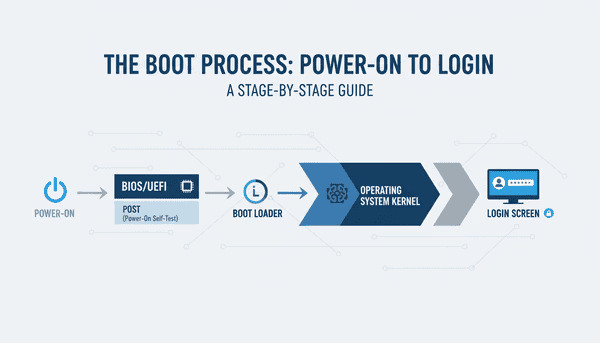
When you press the power button on your computer and moments later find yourself at the desktop, a complex series of steps has taken place in those few seconds. To new IT learners, this can seem mysterious. But understanding the boot process, the journey from power-on to login, is essential for troubleshooting, system optimization, and building a solid foundation in computing.
Here’s a complete, beginner-friendly breakdown of what happens behind the scenes.
1. Power-On: The Beginning of the Journey
The first step starts with the Power Supply Unit (PSU). When you press the power button, the PSU converts AC (Alternating Current) from your wall outlet into lower-voltage DC (Direct Current).
This DC power is distributed across the motherboard and components, signaling the system to begin its startup sequence. Once power is stable, the CPU (Central Processing Unit) begins executing instructions.
2. BIOS or UEFI Firmware Takes Over
Your CPU looks for a small program embedded in the motherboard called firmware, specifically BIOS (Basic Input/Output System) or UEFI (Unified Extensible Firmware Interface).
- BIOS is the older, text-based interface still found on many legacy systems.
- UEFI is its modern successor — faster, more secure, and capable of handling drives larger than 2TB.
This firmware is responsible for initializing components and preparing the system to load the operating system.
3. POST – The Power-On Self-Test
Before anything else, the firmware runs a Power-On Self-Test (POST).
This diagnostic step checks essential hardware: memory (RAM), CPU, display, and storage devices.
If all tests pass, the system proceeds; if not, it provides signals, beep codes or error messages, indicating the faulty component. For example:
- No memory detected → series of long beeps
- Video card failure → repeated short beeps
POST ensures hardware stability before continuing.
4. Finding and Running the Boot Loader
Once POST completes successfully, BIOS/UEFI looks for a bootable device following a predefined boot order (like SSD → USB → Network).
When it finds one, it locates a small program called the boot loader (or boot manager), typically stored in the Master Boot Record (MBR) or EFI partition.
Popular boot loaders include:
- Windows Boot Manager (bootmgr) — used by Windows
- GRUB (GRand Unified Bootloader) — common in Linux
- macOS Boot Loader — built into Apple’s firmware
The boot loader’s primary job is to find and load the operating system kernel into memory.
5. Loading the Operating System Kernel
The kernel is the heart of any operating system, it manages hardware, processes, and memory.
During this phase:
- The kernel is loaded into RAM.
- Core drivers for CPU, memory, and storage are initialized.
- The root file system is mounted (so the system can access OS files).
After this, the kernel takes full control of the machine, marking the transition from the firmware layer to the OS.
6. Starting System Services and Background Processes
Once the kernel is active, the system starts launching background processes known as services or daemons.
In Windows:
- smss.exe – Session Manager (prepares the system environment)
- wininit.exe – Responsible for starting core processes
- services.exe – Controls system services
- lsass.exe – Manages security and logins
- winlogon.exe – Handles the login interface
In Linux:
The kernel starts init (or systemd in modern distros), which:
- Mounts drives
- Starts daemons (for networking, display, etc.)
- Prepares the system for user interaction
At this stage, your operating system becomes operational behind the scenes.
7. Login Screen Appears
This is the first visible sign to the user that the boot process is nearly complete.
- In Windows, the process
winlogon.exedisplays the login screen where you enter your password, PIN, or use biometric authentication. - In Linux, the Display Manager (like GDM, LightDM, or SDDM) presents a graphical login interface.
The authentication process verifies your credentials using security subsystems such as the Local Security Authority (LSA) in Windows or PAM (Pluggable Authentication Modules) in Linux.
8. User Session Initialization
After successful login, the system sets up your user environment:
- Loads your profile and configuration files
- Starts desktop environments (like Windows Explorer, GNOME, or KDE)
- Launches startup applications
Everything you see, icons, menus, and background programs, comes to life during this final step.
At this stage, the system transition from “starting up” to “ready for use” is complete.
9. Quick Recap: The Boot Process Flow
Here’s the full sequence summarized for clarity:
- Power On – PSU provides power.
- Firmware (BIOS/UEFI) – Initializes components.
- POST – Tests hardware stability.
- Boot Loader – Finds and loads the OS.
- Kernel Initialization – Core OS components start.
- System Services – Background operations and drivers begin.
- Login Screen – User authentication prompt.
- User Session – Personal desktop environment loads.
10. Why Every IT Beginner Should Know This
Understanding the boot process helps with:
- Troubleshooting startup problems (knowing whether it’s hardware, firmware, or software-related)
- Optimizing system performance
- Learning operating system architecture
- Improving security awareness (e.g. detecting firmware tampering)
This knowledge is foundational for IT support, cybersecurity, and system administration.
Conclusion
The boot process happens in seconds, but it involves an intricate series of checks and operations, each step critical to a functional computer. From power-on to login, your system transforms from silent hardware to a responsive digital workspace.
For those new to IT, mastering the boot process is like learning how a car engine starts. Once you know what’s happening under the hood, you’ll be far better prepared to diagnose issues, optimize performance, and deepen your understanding of computer systems.





Comments (0)